CREATOR TOOL
DEV DIVISION
An overlay toolkit for Bodycam built for usability: browse the game’s asset library, lay out your own map, save it, and deploy it straight into a hosted custom match — with gamemodes, caps and bots under your control.
We will not design it to be one. The Creator Tool exists to boost the community and bring more players in — user-generated maps, custom matches, and hosting features. No aim assistance, no ESP, no memory tampering, no competitive advantage of any kind. Anything that crosses that line does not ship.
GET THE BUILD
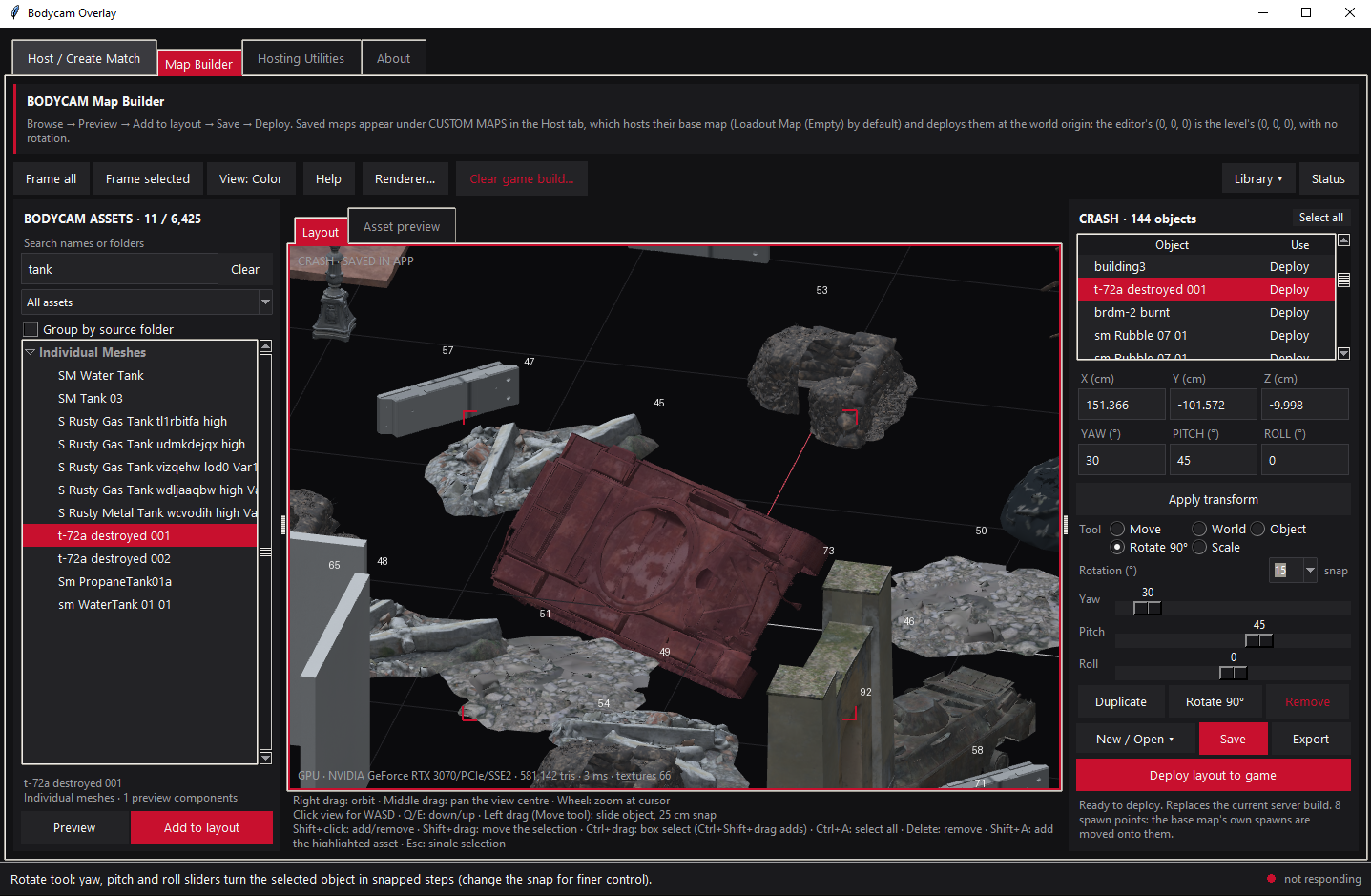
INSIDE THE TOOL
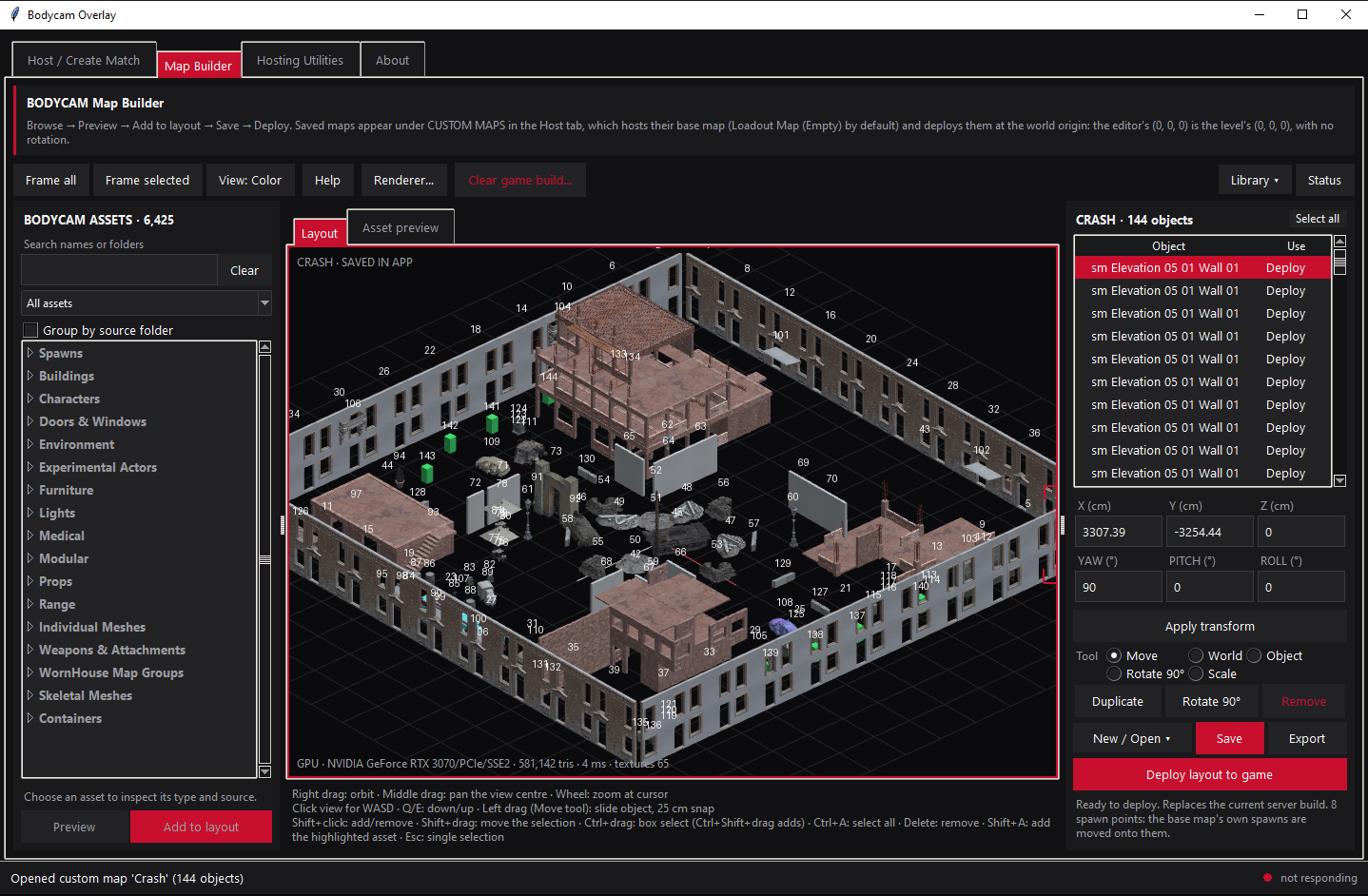
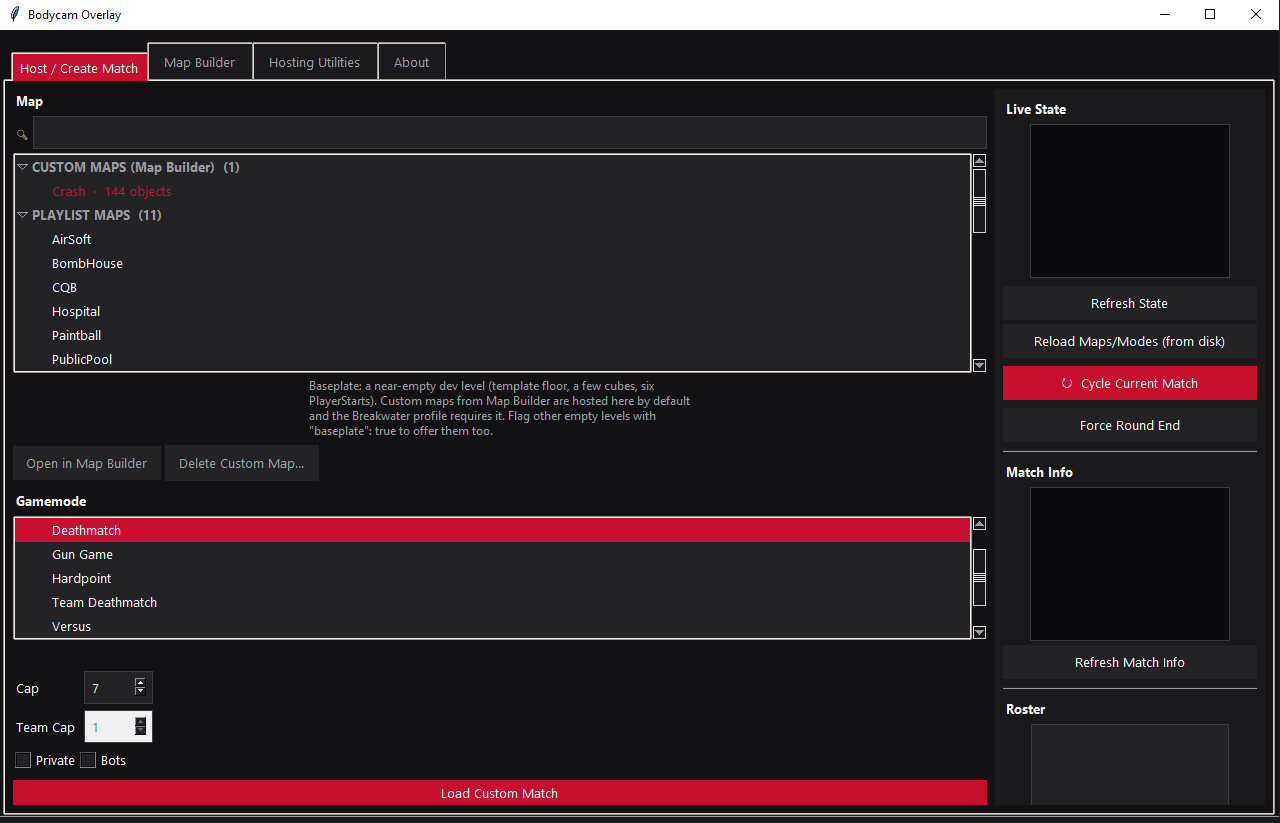
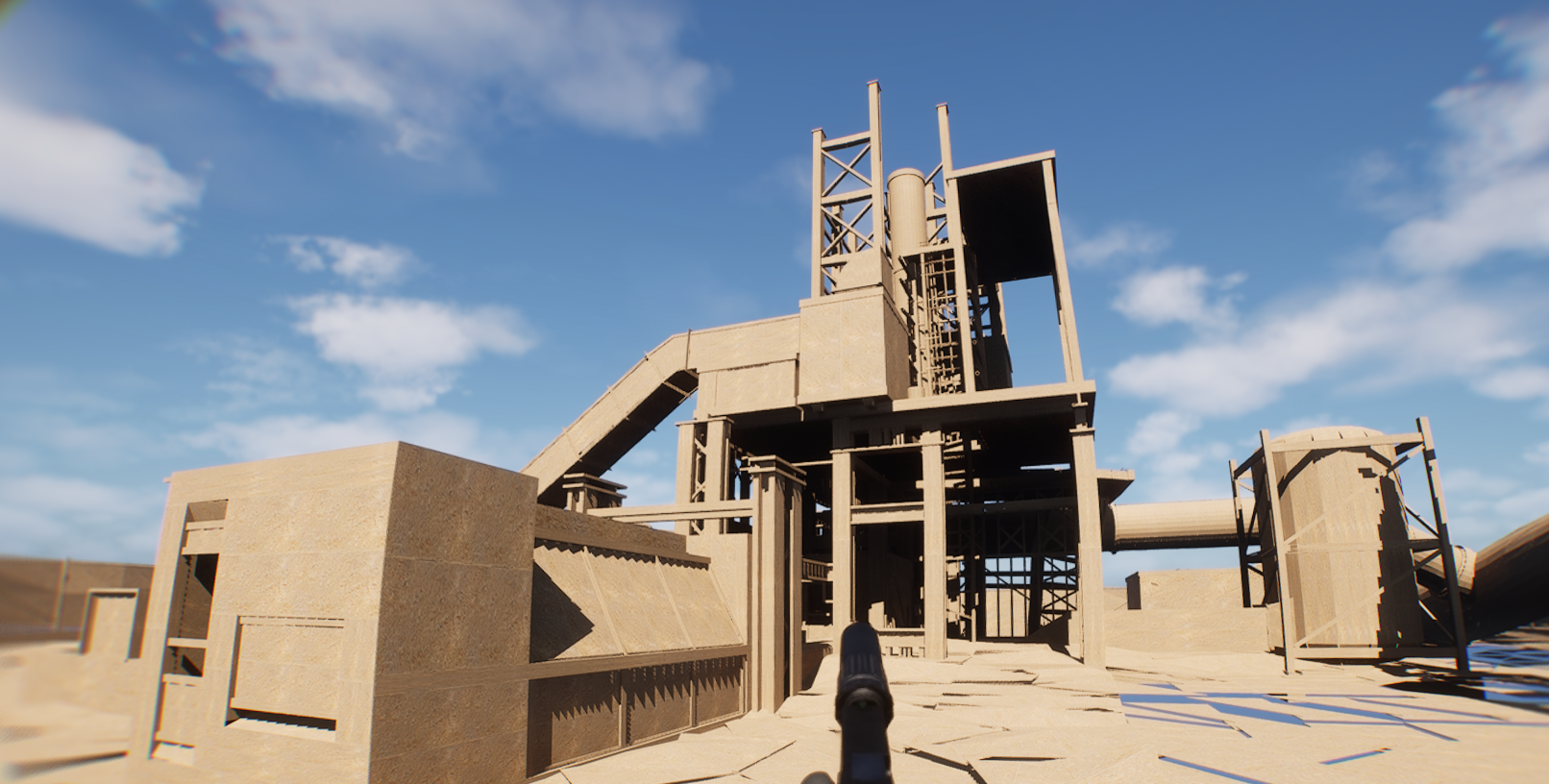
CHANGELOG
- {{ n }}
COMMUNITY MAPS
Once the Map Builder ships, published maps land here with their object count, spawn layout and the host profile they were built against. Custom maps appear in-game under CUSTOM MAPS in the Host tab.
QUESTIONS
{{ q.q }}
{{ q.a }}
MAP BUILDER HELP
Build a layout from stock Bodycam assets, save it as a custom map, then host it from the Host tab. Everything you place in the editor lands in the game exactly where the editor shows it: the editor’s (0, 0, 0) is the level’s world origin, and nothing is rotated by where you stand.
This is not a cheat tool. It is an open-source modding and hosting utility built for community map making: you arrange stock Bodycam assets in this editor, host the result yourself, and friends join a normal match on it. That is the whole purpose, and it is meant to stay that way.
DELIBERATELY SWITCHED OFF OR LOCKED
- Custom maps force bots off and grey out the Bots option, and require at least six real Player Spawns.
- Only the host can deploy or clear a build. A joined client has no authority and the game refuses the spawn; the Status button shows you why.
- Anything that would disrupt a match with other people in it — deploying, clearing, hosting, changing rounds — checks the live roster first and asks before continuing.
- The builder places scenery only. Characters, weapon logic and player state are not touched, and nothing is injected into the game process; it talks to your own hosted game through a local mod.
- Everything you build is visible to everyone in the match. There are no host-only objects, hidden walls or one-sided geometry.
If you find a way to misuse it, that is a bug: report it on the project’s GitHub page rather than sharing it. Keep it a utility for hosting and building, and it stays available for everyone.
01THE WORKFLOW
Layouts autosave; Export / Import move the same JSON to and from a file so you can share maps.
02KEYBINDS AND MOUSE
Shift and Ctrl also work in the layout list to pick several rows. Double-click a row to frame that object.
03TOOLS
Move — left-drag objects on the ground plane.
World — X, Y and Z sliders move the selection along the world axes, one axis at a time. Release re-centres the slider so you can keep going.
Object — Fwd, Right and Up sliders push the selection along the primary object’s own rotated axes, so a tilted ramp slides along its slope. Each drag continues from where the last ended.
Rotate 90° — yaw, pitch and roll sliders that share one snap setting (90° by default; pick 45, 15 or 1 for ramps and fine tilts). The Rotate 90° button turns the whole selection a quarter turn.
Scale — Uniform scales the whole object with one slider; switch to Per axis to stretch along the object’s own X, Y or Z. The unused set is greyed out. Scale is saved with the layout and applied in-game.
Transform fields — type exact X/Y/Z (cm) and yaw/pitch/roll (degrees) for the primary object and click Apply transform.
Duplicate copies every selected object at its exact position and selects the copies, ready to drag away. Remove deletes the selection.
04ASSETS: WHAT THE TYPES MEAN
Spawn points — the built-in Player Spawn. Every ordinary layout needs at least 6 before it can be deployed or hosted; yaw is the facing direction. On deploy each spawn gets an in-game marker and the base map’s own spawn points are moved onto yours (extras stacked, missing ones created), so nobody spawns at the baseplate’s old locations. Team modes pick a spawn dynamically by distance and line of sight, so spread spawns over the whole map with cover between them.
Assemblies — Bodycam Blueprint actors (buildings, doors, lights, props). They deploy as the real actor.
Individual meshes — single static meshes from the game (walls, containers, furniture). They deploy on a stock mesh carrier and keep their own materials, so other players see them textured.
Other skeletal meshes — weapons, gear and similar. They deploy in their reference pose with no animation.
Map groups — WornHouse’s stored groups of meshes. Adding one expands it into its member meshes with their authored offsets, rotations and scales, as one selection you can drag as a unit.
Characters — preview only. Spawning a character needs the game’s own setup flow, so they cannot be deployed.
Grey boxes marked No preview are meshes the game has but this PC has no preview for; they still deploy. Extract the library to see them.
05THE EXTRACTOR — REAL PREVIEWS FOR EVERY MESH
Out of the box the editor only has previews for the bundled assets. To see every mesh in the game with its real shape and materials:
- Start Bodycam and wait until the status bar at the bottom says CONNECTED.
- Click the Library ▾ dropdown at the top right of Map Builder.
- Click Extract Library… in that dropdown.
- Leave Also extract material texture previews ticked and click Start extraction.
It dumps the game’s type mappings (the game must be running the first time), reads your installed game files and writes about 2.6 GB of preview meshes and textures to %LOCALAPPDATA%\BodycamOverlay\asset_library. The first run also downloads a private .NET SDK (about 250 MB). Expect 10 to 30 minutes; you can keep playing meanwhile. When it finishes the library refreshes on its own and the asset count on the left jumps to several thousand.
Refresh Library in the same dropdown re-reads the folder if you copied a library from another PC. The library is per PC: friends run the extractor on their own install.
06VIEWPORT AND RENDERER
View: Color tints objects by category; Materials shows real textures; Wireframe shows edges. Renderer… reports whether the GPU (OpenGL) or the software painter is drawing, lets you switch, and opens Windows graphics settings for laptops with two GPUs.
The bottom-left status line shows the renderer, triangle count, frame time and how many textures have streamed in.
07MAPS AND BASEPLATES
A custom map is your layout plus the level it is hosted on, called the baseplate. Loadout Map (Empty) is the default: an empty level where the editor’s (0, 0, 0) is the level’s (0, 0, 0), so objects land exactly where you drew them.
Any other level (Dev Inventory (Theo) or a playlist map) still works, but its own geometry is in the way, so the whole layout is raised 200 cm above that level’s origin on deploy. Build with that in mind or stick to Loadout Map (Empty).
Rules the app enforces for custom maps: at least 6 Player Spawns (the Deploy button and Load Custom Match refuse otherwise), and bots are forced off and greyed out on the Host tab, because a built layout has no bot navigation.
Team modes pick spawns dynamically by distance and line of sight, so spread your 6 or more spawns across the map with cover between them; the game does not have fixed team sides.
08SAVING, HOSTING AND DEPLOYING
Save keeps the map inside the app; it appears under CUSTOM MAPS on the Host tab. New / Open ▾ opens a saved map or imports a shared file; Export writes one.
The baseplate is the empty level your map is built on. Loadout Map (Empty) is the default; the Save dialog lists the flagged baseplates first and every other map after them.
Deploy layout to game replaces the current build in the hosted match. Only the host can deploy. The result line in the status bar reports how many objects spawned and, if anything failed, which object and why. Clear game build… removes the build and puts the base map’s spawns back.
Status shows the live build and a readiness report: level, network session, your pawn, whether you have authority, and the engine’s own rotation for the first objects. Read it first when a deploy fails.
09MULTIPLAYER NOTES
Objects replicate to everyone who joins: positions, rotations and scales arrive on every client. Materials are never sent over the network; they load from the mesh itself, which is why layouts built from real Bodycam meshes look right for joiners while primitives painted with material overrides show up grey for them.
Deploy disrupts anyone else in the match, so the app checks the roster first and asks before replacing a build when others are connected.
10REQUIREMENTS
Python 3.0+ — needed to run the tool from source (python src/overlay_app.py) or to rebuild the exe with build.bat. The packaged BodycamOverlay.exe carries its own Python, so it needs none installed.
Microsoft Visual C++ Redistributable 14.0+ (the 2015–2022 x64 package) — UE4SS, the mod this tool talks to, needs it inside the game. If Bodycam starts but the status bar never says CONNECTED and the ue4ss folder holds nothing but a log, install it and restart the game.
Windowed or borderless mode — so the overlay window can sit on top of the game.
The extractor also needs a .NET SDK; it downloads a private copy (about 250 MB) on its first run, nothing to install by hand.
11REPAIRING THE TOOL
If the buttons stop responding, the status bar stays on not responding, or deploys fail with errors about missing files, mods or scripts, delete the two folders the tool regenerates and let it reinstall itself:
- Exit the overlay: right-click its icon in the system tray and choose Exit.
- Close Bodycam completely; check Task Manager if you are not sure it is gone.
- Delete the bridge folder: %LOCALAPPDATA%\Temp\bodycam_bridge
- Delete the UE4SS folder inside the game: <Bodycam install>\Bodycam\Binaries\Win64\ue4ss — the whole folder, not just its contents.
- Start the overlay again. On launch it finds the game, reinstalls its bundled UE4SS and the ClaudeBridge mod, and tells you when to start Bodycam.
- Start Bodycam; a fresh ue4ss folder and bridge folder are written automatically. Wait for CONNECTED in the status bar.
Your saved custom maps, layouts and settings live in %LOCALAPPDATA%\BodycamOverlay and are not touched by this. Only delete that folder too if you want a full reset, and copy its custom_maps folder somewhere first if you want to keep your maps.
If the same error comes back after a clean reinstall it is not stale files: copy the status bar text and the ue4ss\UE4SS.log file into an issue on the project’s GitHub page.
POSITIONS ARE CENTIMETRES, ANGLES ARE DEGREES, SCALE IS A MULTIPLIER. THERE IS NO OBJECT LIMIT — VERY LARGE LAYOUTS JUST TAKE LONGER TO DEPLOY.
JOIN OUR DISCORD
Get access to updates and live news — build announcements, release countdown, map showcases and direct line to the dev division.